Wysebee Agent for Chrome
Your browser, as an agent of its own.
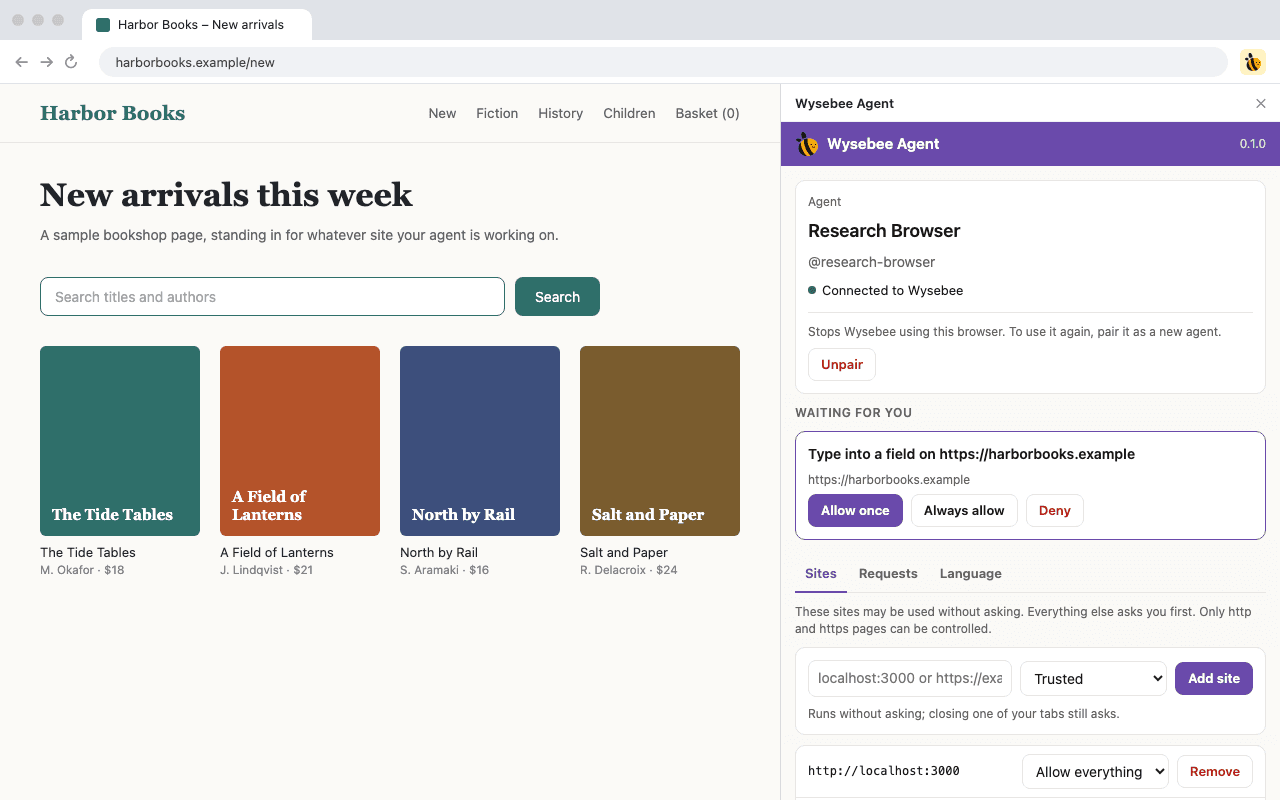
Wysebee Agent pairs this browser with Wysebee. The agent it creates, and only that agent, can then see and control your tabs, only where and when you allow it.
Chrome 116 or later. Needs a Wysebee account. Chrome only for now.
How to pair
Four steps, about a minute.
- 01
Add Wysebee Agent to Chrome
Install the extension, then click the bee in Chrome's toolbar. The Wysebee Agent side panel opens beside your page.
- 02
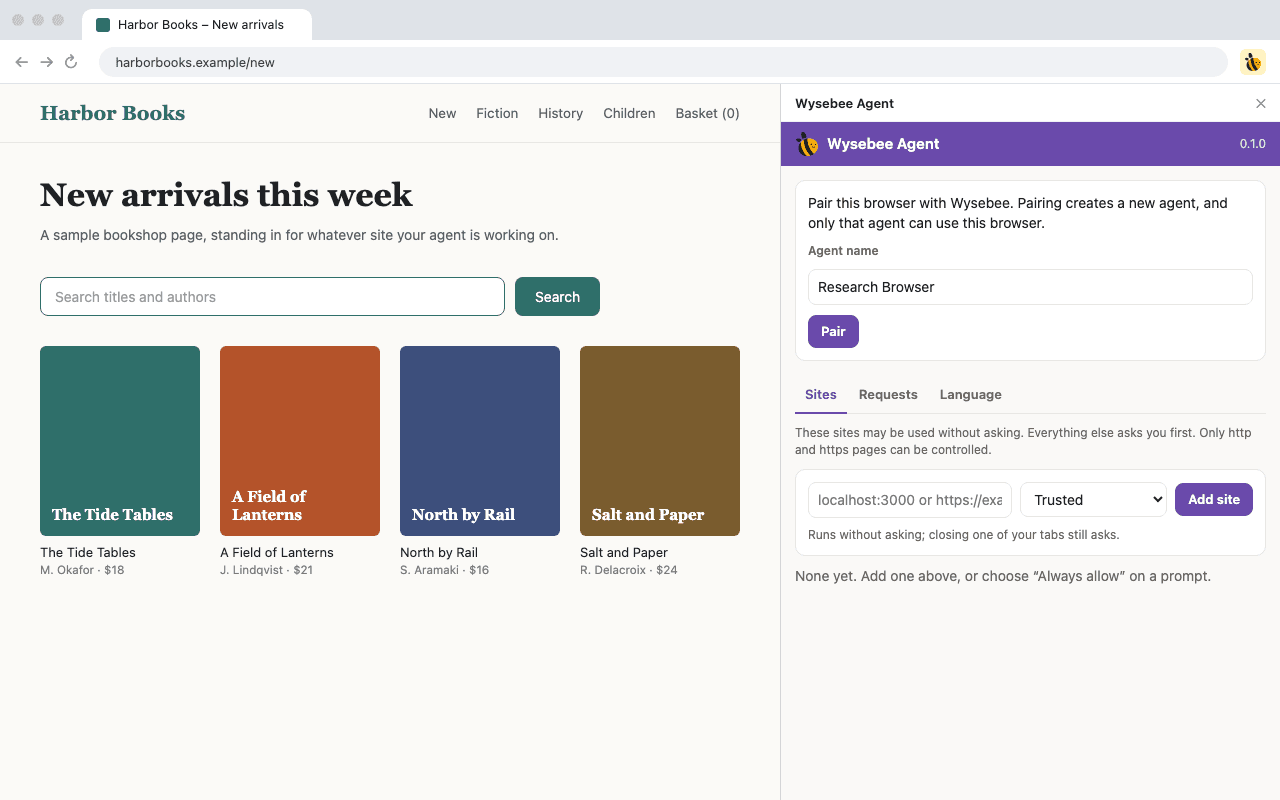
Name the agent and press Pair
Pairing creates a new agent for this browser, so give it a name you will recognise, such as “Research Browser”. Names are 1 to 60 characters.
- 03
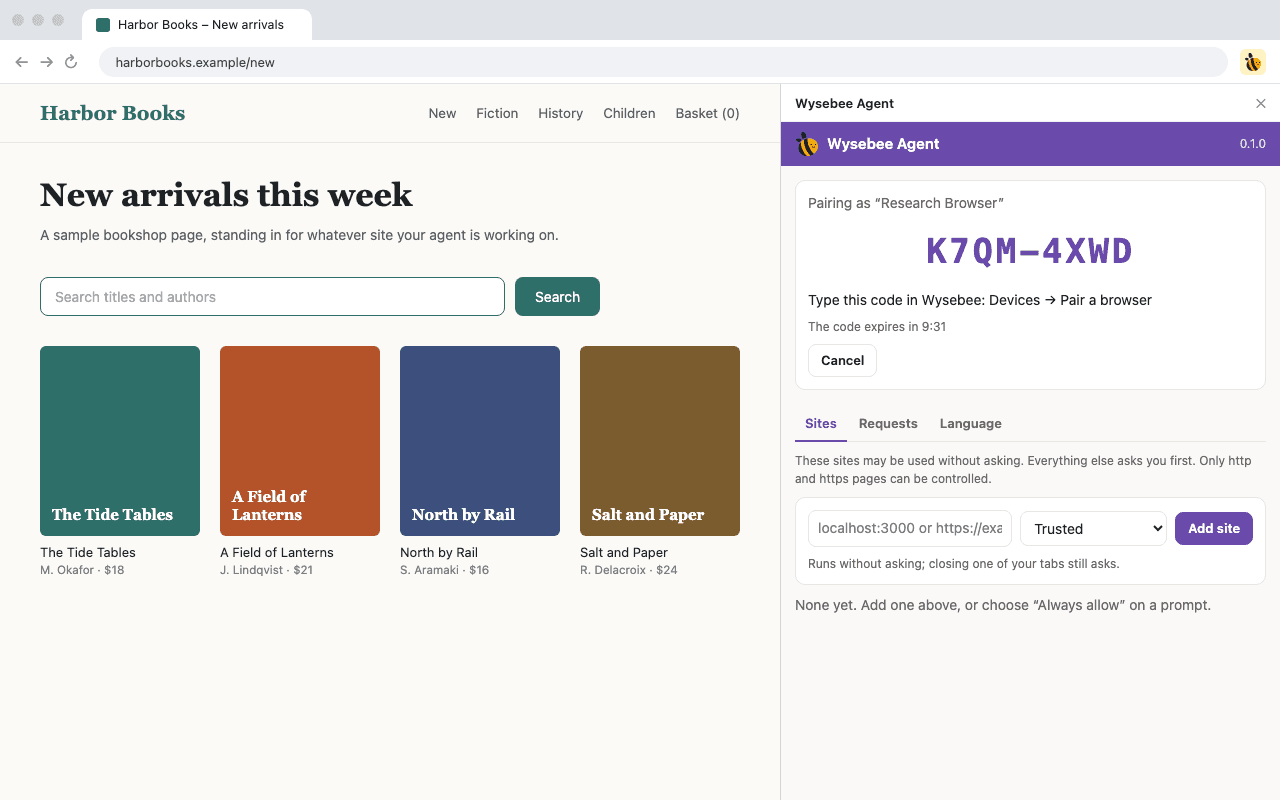
Type the code into Wysebee
The panel shows a code like XXXX-XXXX, good for ten minutes. In Wysebee Desktop or on the Wysebee website, signed in, open Devices, choose Pair a browser and type the code.
- 04
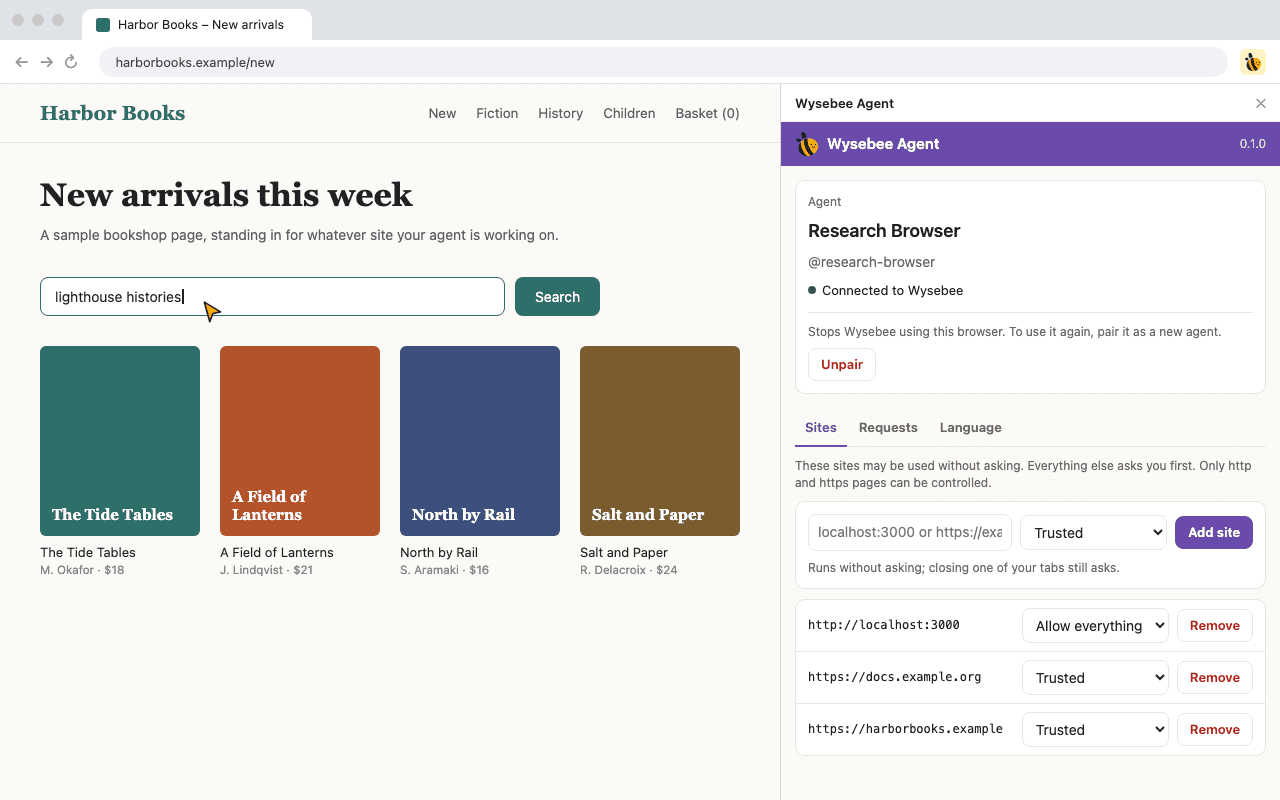
You are connected
Wysebee creates the agent under that name, and the panel shows it as Connected. Talk to it from Wysebee and it works in this browser, in the tabs and sign-ins you already have.
A name that is already taken or reserved is refused; the panel says why and you pick another. You can sign in to Wysebee on the web at app.wysebee.com.
What it is for
Work that lives in a browser tab.
Test a web app in plain language
Ask the agent to sign in, find a product and check out, and it walks the flow in a real browser. No selectors, waits or page objects to maintain. Mark your test site “Allow everything” so a run is never interrupted by a prompt.
Hand off the repetitive click-through
Sites with no API still have a web page. The agent uses the session you are already signed in to, so it can look something up, fill a form or collect a figure, and come back with an answer.
Debug a page with the agent
For an agent given the web development tools in Wysebee, the extension can read the console and network activity, inspect an element, audit the page and measure performance, then tell you what it found.
Reach your browser from anywhere
The extension talks to Wysebee Cloud, so you can ask this browser's agent for something from the Wysebee website or another computer while the browser stays where it is.
You stay in control
Nothing happens on a site you have not allowed.
- It asks first
- Anything on a site you have not trusted waits for you: Allow once, Always allow, or Deny. Closing one of your own tabs always asks.
- You choose the sites
- The Sites tab lists every site that runs without asking. Change its level or remove it at any time.
- Block whole kinds of request
- Turn off screenshots, typing, real mouse input, bookmarks or anything else, on every site at once.
- Unpair in one click
- Unpair stops Wysebee using this browser at once. To use it again, pair it as a new agent.
What leaves your browser
- Approvals and blocks are enforced in the extension, before anything is read or sent.
- What the agent asks for, and the results, pass through Wysebee Cloud: page snapshots, screenshots, tab titles and sites, typed text, and console and network logs when the web development tools are used.
- Secret request headers and password-like fields are redacted from network logs before they leave the browser.
- No analytics. Your trusted sites and settings stay in this browser.
See the Privacy Policy for the full picture.
Questions, or something not working?
The Discord is where questions get answered and bugs get reported.